Website Routing
In the Manage Files guide you saw that a directory upload creates a manifest — a data structure mapping paths to content. Routing on Swarm is a direct consequence: every URL your site serves must correspond to an entry in that manifest. This guide covers the two main strategies for giving your site clean, navigable URLs.
Swarm does not behave like a traditional web server — there is no server-side routing, and every route must correspond to a real file inside the site manifest.
If you try to use typical "clean URLs" like:
/about
/contact
/dashboard/settings
Swarm will look for literal files such as:
about
contact
dashboard/settings
...which don’t exist if you've uploaded a static website with files like about.html and contact.html.
There are two main strategies for addressing routing:
- Hash-Based Client-Side Routing
- Manifest-Based Routing with Aliases or Index Files
Now let’s look at each method:
Client-Side Hash Routing
This section explains how to add hash based client side routing to your Swarm hosted site so that you can have clean URLs for each page of your website.
See the routing project in the examples repo for a full working example implementation.
Swarm has no server backend running code and so can’t rewrite paths. One approach to routing is to set up a SPA with React's HashRouter, which keeps all routing inside the browser.
You can do this easily using a template from create-swarm-app and then adding your own pages.
1. Create a New Vite + React Project (with create-swarm-app)
Run:
npm init swarm-app@latest my-dapp vite-tsx
This generates a clean project containing:
src/
  App.tsx
  index.tsx
  config.ts
public/
index.html
package.json
You now have a fully working Vite/React app ready for Swarm uploads.
2. Install React Router
Navigate to the project directory:
cd my-dapp
Inside the project:
npm install react-router-dom
This gives you client-side navigation capability.
3. Switch the App to Use Hash-Based Routing
Swarm only serves literal files, so /#/about is the only reliable way to have “pages.”
Replace your ./src/App.tsx with:
import { HashRouter, Routes, Route, Link } from 'react-router-dom'
import { Home } from './Home'
import { About } from './About'
import { NotFound } from './NotFound'

export function App() {
    return (
        <HashRouter>
            <nav style={{ display: 'flex', gap: '12px', padding: '12px' }}>
                <Link to="/">Home</Link>
                <Link to="/about">About</Link>
            </nav>

            <Routes>
                <Route path="/" element={<Home />} />
                <Route path="/about" element={<About />} />
                <Route path="*" element={<NotFound />} />
            </Routes>
        </HashRouter>
    )
}
This gives you usable routes:
/#/         → Home
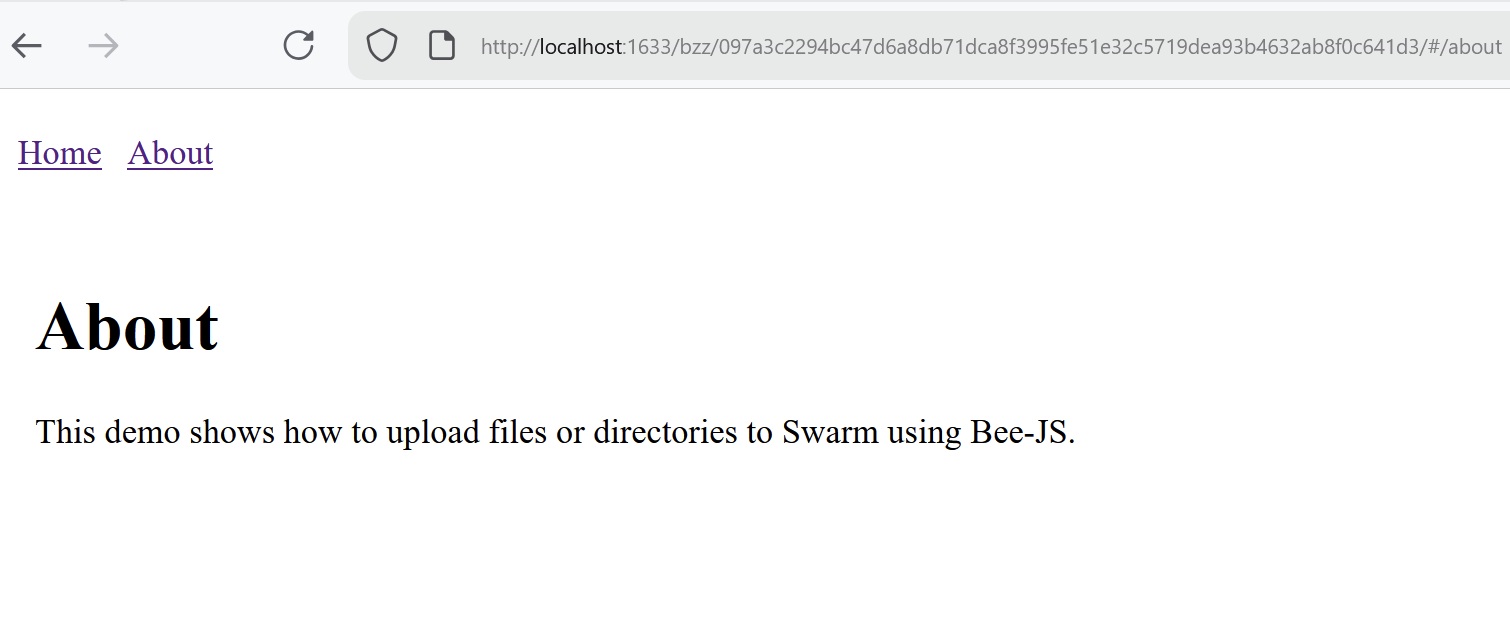
/#/about    → About
/#/anything → React 404 page
4. Add Your Page Components
Create your page components inside ./src:
Example About.tsx:
export function About() {
  return (
    <div style={{ padding: '20px' }}>
      <h1>About</h1>
      <p>This demo shows how to upload files or directories to Swarm using Bee-JS.</p>
    </div>
  )
}
Example Home.tsx:
export function Home() {
  return (
    <div style={{ padding: '20px' }}>
      <h1>Home</h1>
      <p>Welcome to your Swarm-powered app.</p>
    </div>
  )
}
Example NotFound.tsx:
export function NotFound() {
  return (
    <div style={{ padding: '20px' }}>
      <h1>Page Not Found</h1>
      <a href="./#/">Return to Home</a>
    </div>
  )
}
5. Add a Static 404.html for Non-Hash URLs
Swarm still needs a fallback for URLs like:
/non-existent-file
Create a ./public directory and save a 404.html file inside:
<!DOCTYPE html>
<html>
<head>
  <meta charset="UTF-8" />
  <title>404 – Not Found</title>
  <style>
    body { font-family: sans-serif; padding: 40px; }
    a { color: #007bff; }
  </style>
</head>

<nav style="display: flex; gap: 12px; padding: 12px">
  <a href="./#/">Home</a>
  <a href="./#/about">About</a>
</nav>

<body>
  <h1>404</h1>
  <p>This page doesn't exist.</p>
  <p><a href="./#/">Return to Home</a></p>
</body>
</html>
Vite will automatically include this in dist/.
This file handles non-hash missing paths. React handles hash missing paths.
6. Build the Project
Before uploading, compile the Vite app into a static bundle:
npm run build
This produces a dist/ folder containing:
dist/
  index.html
  404.html
  assets/
Everything inside dist/ will be uploaded to your Swarm feed.
7. Deploy Site
The project includes an upload.js script that uploads ./dist to Swarm and publishes the result to a feed (so your URL stays stable across re-uploads). Set up your .env and run it:
cp .env.example .env
# Fill in BATCH_ID and PUBLISHER_KEY in .env
npm run upload
You should see the website Swarm hash and a feed manifest hash. Open the feed manifest URL — http://localhost:1633/bzz/<FEED_MANIFEST>/ — in your browser.
For details on feeds and stable URLs, see the Host a Webpage guide.
The Home and About pages will be properly resolved by the routes we specified (./#/) and (./#/about), and non-existent URLs will be handled by the NotFound component for hash URLs and our 404.html error document for all others.
Manifest Based Routing
The second routing method involves directly manipulating the manifest so that routes resolve properly to the intended content.
1. Upload the Site with Default Manifest
Download example project:
git clone https://github.com/ethersphere/examples.git
cd examples/routing-manifest
Install dependencies:
npm install
Configure environment variables. There is a .env file with important constants listed in it. You will need to at least update it with a valid batch ID, and potentially other changes if you are not using a default setup:
Replace the value for BATCH_ID with your own valid batch IDs. Otherwise you may also need to update BEE_URL if its value doesn't match your Bee RPC endpoint.
BEE_URL=http://localhost:1633
BATCH_ID=afd0810c2ea2936df849fe7b52650e231a19b7b31dbf7f96a93f0cf8a296f3f3
PUBLISHER_KEY=0x1111111111111111111111111111111111111111111111111111111111111111
UPLOAD_DIR=./site
BASE_MANIFEST=
Start by uploading the site using the upload.js script provided in the example project:
node .\upload.js
Terminal output:
Manifest reference: e4d93dc161d9b1fb192fdcef7e18830bd50fa5b80561de18d5f2945fb8618515

URL: http://localhost:1633/bzz/e4d93dc161d9b1fb192fdcef7e18830bd50fa5b80561de18d5f2945fb8618515/
Copy the manifest reference hash and set it inside your .env file as the BASE_MANIFEST value:
BASE_MANIFEST=e4d93dc161d9b1fb192fdcef7e18830bd50fa5b80561de18d5f2945fb8618515
If you peek inside the upload.js code you will see these lines:
const { reference } = await bee.uploadFilesFromDirectory(
  batchId,
  uploadDir,
  {
    indexDocument: "index.html",
    errorDocument: "404.html",
  }
)
Take note of the values set by the indexDocument and errorDocument options. With those options specified, manifest entries for the root path ./ and non existent paths will be created on upload to resolve to index.html and 404.html respectively. Without specifying them, your site would not load either page unless you explicitly include the entire filename with extension in the URL.
Navigate in your browser to the manifest URL output to the terminal after running the upload.js script:
http://localhost:1633/bzz/e4d93dc161d9b1fb192fdcef7e18830bd50fa5b80561de18d5f2945fb8618515/
Scroll down the example web page, read the instructions in the example website and click each of the example links to inspect how routing works by default without any manifest edits (besides those specified for the index and error documents):
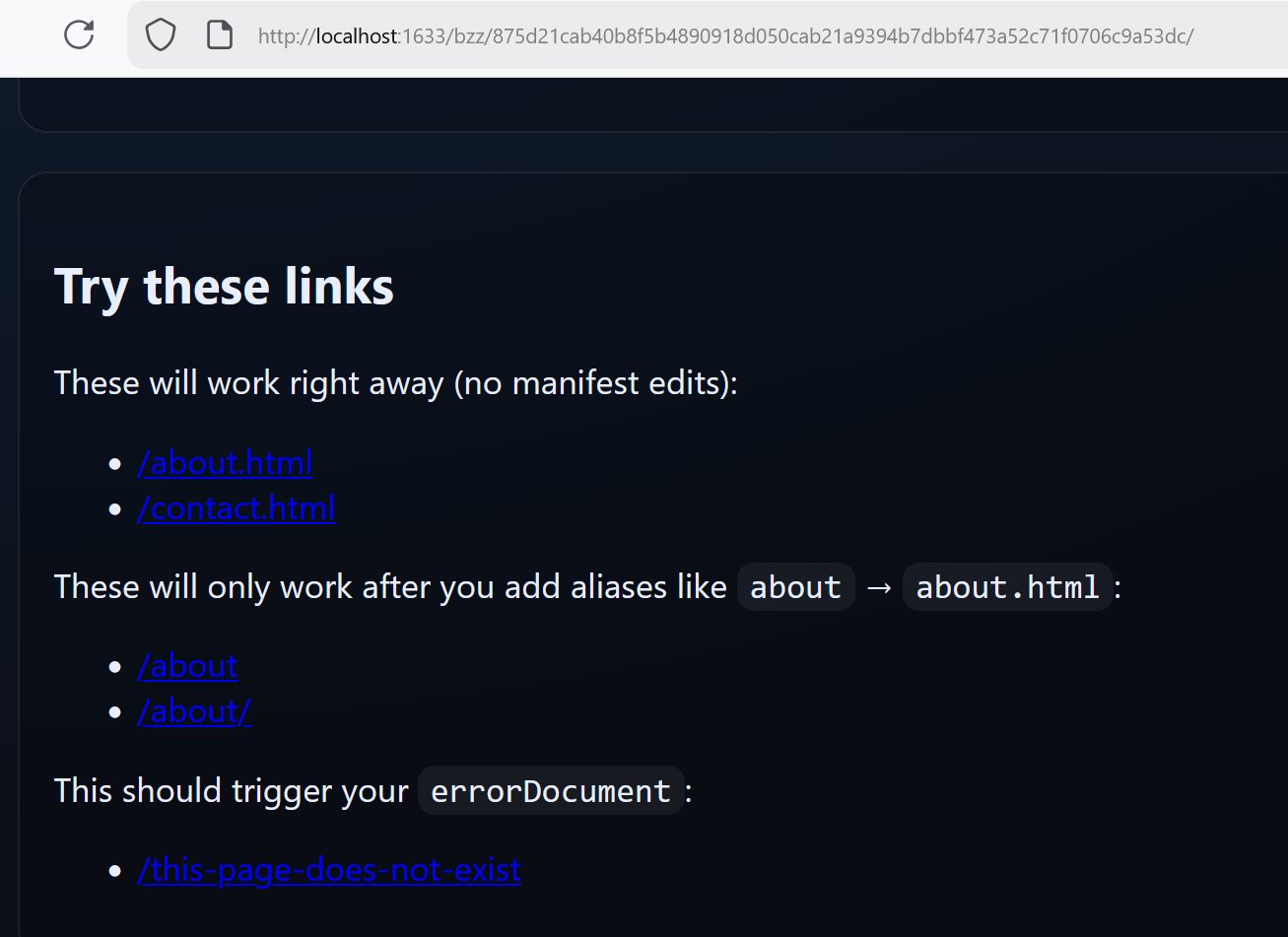
You will find that links to direct files with file extensions included like /about.html will work, but links to /about will not. This is because we have not yet modified our manifest to set up typical routing behavior.
2. Fix Routing With Manifest Manipulation
Without manifest edits, routes only work via exact file paths like:
/index.html
/about.html
/contact.html
Trying to access /about or /about/ will fail.
Add Routing Behavior by Manifest Manipulation
We can easily add standard routing behavior by adding entries to our manifest which link the content reference with our desired URL paths:
node.addFork('about', referenceForAbout, metadata)
node.addFork('about/', referenceForAbout, metadata)
After this, both /about and /about/ will resolve to the same content as /about.html.
Run the provided script to update the manifest:
Make sure you have already set the BASE_MANIFEST to the hash returned from the upload script we ran above or else this won't work:
BASE_MANIFEST=e4d93dc161d9b1fb192fdcef7e18830bd50fa5b80561de18d5f2945fb8618515
node .\updateManifest.js
Terminal output:
Updated manifest reference: 1483be29a42ec1e40b4d639f800a8fd982db9d5146088672a5edef9a1e0648aa

URL: http://localhost:1633/bzz/1483be29a42ec1e40b4d639f800a8fd982db9d5146088672a5edef9a1e0648aa/007bff
Try navigating to the /about and /about/ routes which previously led to a 404 page, they should now resolve properly. /about.html will still resolve properly as it did previously.
3. Remove Routes and Add New Ones
Manifests control which paths exist on your site by mapping paths to immutable Swarm content references. To remove a page from your site, remove its route(s) from the manifest:
node.removeFork("old-page.html")
If you previously added clean-URL aliases such as:
node.addFork("about", referenceForAbout, metadata)
node.addFork("about/", referenceForAbout, metadata)
…then you must remove all routes that expose that content:
node.removeFork("about")
node.removeFork("about/")
node.removeFork("about.html")
You can also reuse the same content reference under a different path by adding a new manifest entry that points to that same reference:
node.addFork("new-path", existingFileReference, metadata)
This is useful when you want the same page to be available at a new URL without re-uploading or changing the underlying content. If you remove the old route, the old URL will return a 404, while the new URL will serve the same content.
Run the provided script to test the behavior:
Make sure that once again you have updated the .env file with the hash returned from the second step before running this script.
node .\updateManifest.js
Terminal output:
Updated manifest reference: 53e90f4033b99c7f6b82026b8f7beb39f42f99fbb816ae76e850cf2a1b45491d

URL: http://localhost:1633/bzz/53e90f4033b99c7f6b82026b8f7beb39f42f99fbb816ae76e850cf2a1b45491d/

Routes now:
  /moved-about
  /moved-about/
Removed:
  /about
  /about/
  /about.html
Now all our old links to the about page will 404. However, you can still reach the same content by navigating to the newly added routs:
/moved-about
/moved-about/
Manually add them to the end of your website URL to check that they load properly.
4. Manifest Routing Enables Dynamic Content
Once you understand manifest-based routing, you can dynamically:
- Add new paths (e.g. blog posts, product pages)
- Create custom routes
- Remove unwanted paths
Next: Run a Gateway — expose your Swarm-hosted site to the public web through an HTTP gateway.